
Saturday, April 6, 2019

ZipGrade: My Own Scantron

Since I had difficulties in checking exams because of the number of the students that I have, I'm so grateful to one of my students who introduced me this. According to her, this app saved them lots of time in checking their surveys and sorting out how many answered A, B, C, D, and E.
So first, I created an account in Zipgrade. Then, I created customized answer sheets for different exams. 
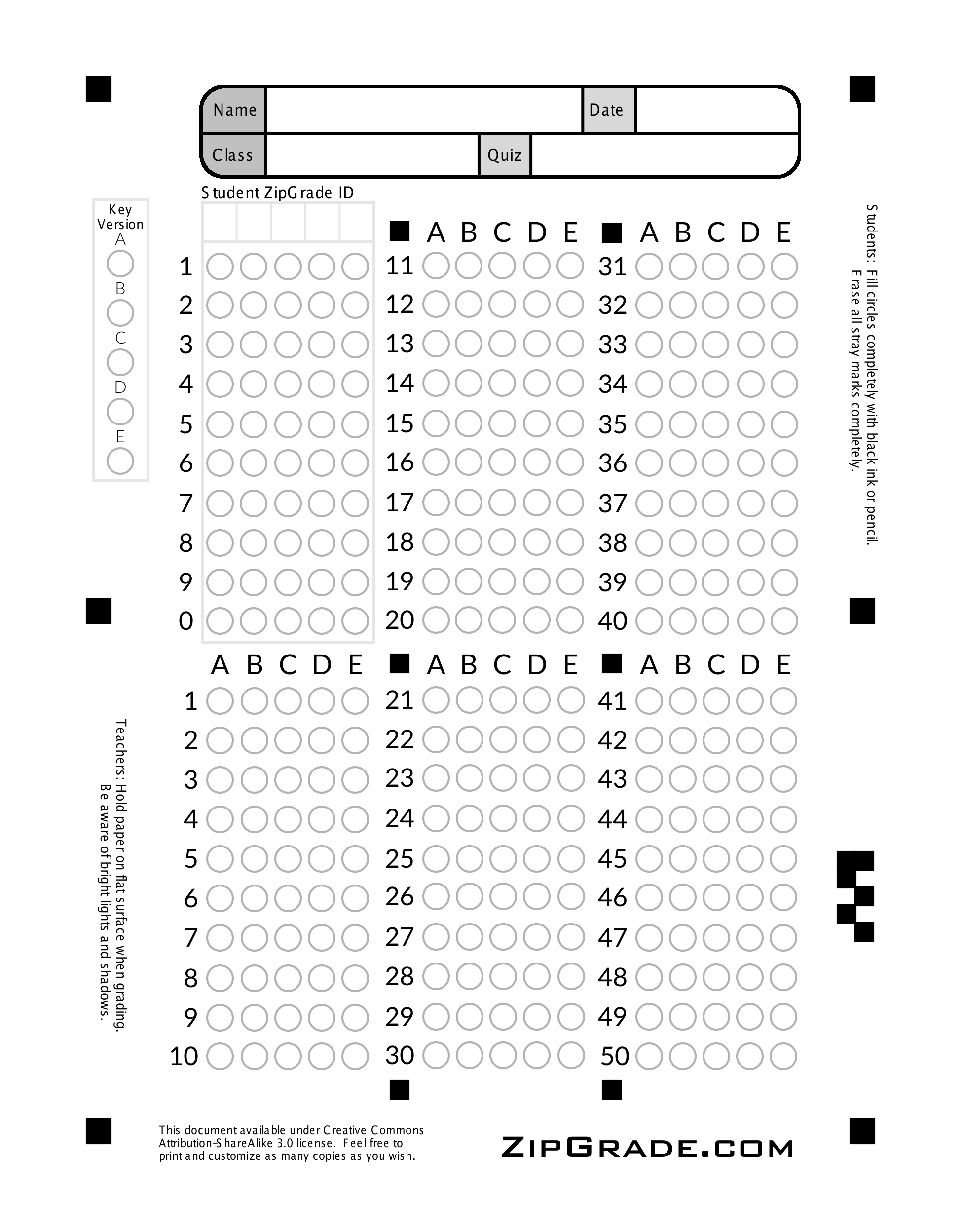
This is an example of a 50-item answer sheet. The only available answer sheets in Zipgrade are 20, 50, and 100 items. To create your own answer sheet, go to their website, then look for customize answer sheet. And when linking it to the quiz you have made, you need to select the correct answer sheet used.
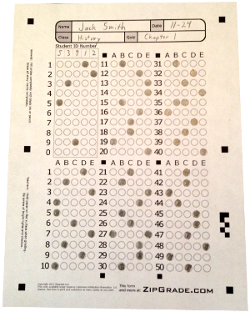
This is an example of an answered worksheet ready for checking. To check the paper, go to the zipgrade app installed in your smartphone. Scan the paper by putting the 4 black squares under the scanning phone, then wait until it checks the paper.
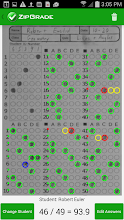
This is how a checked paper looks like. Very time saving app! One more thing, the result will be uploaded in the teacher's database.

What's Your Learning Style?

I got lots of C's and this is so true... thanks for this info. Now I know how to learn better.
Source: Learning Styles PDF

Thursday, April 4, 2019

Kahoot: An ONLINE Classroom Game

Are you having a hard time getting your students' attention? This game may help you, specially now that most of the students have their own smart phones. As a self-proclaimed techie instructor 😂😂😂 I use variety of tools to make my class more alive and in motion. One of the things I use is this called KAHOOT. It's a game played inside the classroom provided that the class will be divided into 2 or more groups and that each team has their own smart phone (to all teachers out there, you can use this to create a lively atmosphere). The teacher will choose or create her own quiz then flash the game on the TV screen where a PIN will be displayed. The students will be asked to go to Kahoot then
they will need to input the PIN on their smartphones which is flashed on the TV screen.
They will decide what their team be called, so when they input their team name, it will be seen on the TV screen. The photo above shows the final result of the game which is played during our PCOM class.


The image above is the Kahoot result of my 21st Century Literature class.